AllSync Scheduler
The AllSync Scheduler enables automatic, time-based or event-based execution of your profiles. The settings for automatically starting one or more profiles are grouped into so-called tasks. All created tasks are clearly displayed in the task list. The Scheduler is available starting with the AllSync Professional Edition.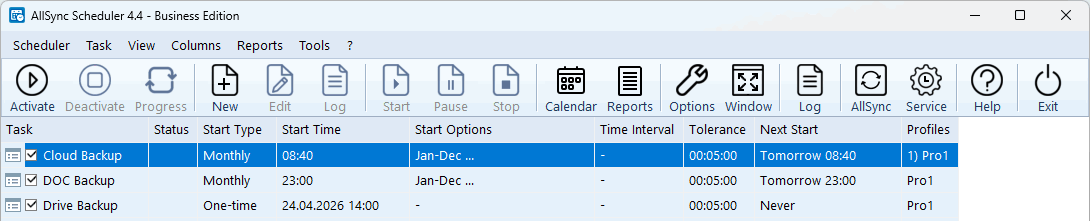
Table of Contents
Tasks
A task can be started automatically – either time-based or event-based:Time-Based
- Once at a specific date and time
- Daily at a specific time
- On selected weekdays at a specific time
- On specific calendar days of the month at a specific time
- At defined intervals starting from a specified time
Event-Based
- When Windows starts
- When Windows shuts down
- When a drive is connected
- When changes occur in a folder
- When the Scheduler is activated
- When the screensaver is displayed
- During Windows system idle
- After waking from standby or hibernation
- When the monitor enters standby mode
Important Information
- The Scheduler must be started and activated for the configured tasks to run automatically.
- Automatic startup of the Scheduler at Windows startup can be set in the general Scheduler options.
- The Scheduler can also be installed as a Windows service via the AllSync Service Tool.
- If the Windows session is ended by the user or system during a task run, the task is aborted and the Scheduler is stopped.
Task List
The task list displays all tasks and their key settings for the start type. Tasks can be enabled or disabled for automatic start using the checkbox in front of the name.| Column | Description |
|---|---|
| Task | Name of the task. |
| Status | Current task status:
|
| Start Type | Defined start type of the task. |
| Start Time | Time of the scheduled start. |
| Start Options | Details of the selected start type (e.g. weekdays, months, monitored folders). |
| Interval | Interval for the start types interval, monitoring, and system idle. |
| Tolerance | Permissible deviation from the scheduled start time. |
| Next Start | Scheduled time of the next execution. |
| Last Start | Time of the last execution. |
| Runtime | Duration of the last execution. |
| Profiles | Names of the activated profiles in the task. |
The context menu of a task provides the following actions:
- Edit Task
- Rename Task
- Copy Task
- Delete Task
- Show Task Log
Calendar
The scheduler calendar is a visualization tool that helps you check the scheduled execution days of a task at a glance. Instead of having to mentally project the stored start rules onto the month, you receive an intuitive overview of the calendar days on which the task is started.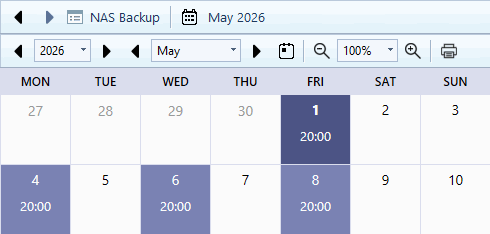
Functionality and display
- Activation: You can show or hide the calendar preview via the calendar icon in the scheduler toolbar. The calendar appears as an interactive panel on the right side of the window.
- Task binding: The calendar is directly linked to your task list. As soon as you click on a task in the list, all start dates for this task are displayed in the calendar.
- Display:
- Marked days: Days with a scheduled start are highlighted in color and show the start time directly in the calendar cell.
- Adjacent months: To facilitate orientation, the ending days of the previous month and the beginning days of the following month are also discreetly displayed.
- Today marker: The current day is highlighted with a special background color so that you can immediately see which start dates are scheduled for today.
Control and navigation
- Month & year change: You can navigate through time using the arrow keys above the calendar to check future plans (see edition differences).
- Today button: Clicking this button immediately jumps the view back to the current month and focuses on today.
- Automatic update: Any change to a task's start options is automatically updated in the calendar.
Functional differences between editions
To meet different requirements, the functionality of the calendar differs between the Professional and Business editions:| Feature | Professional Edition | Business Edition |
|---|---|---|
| Period | The calendar only shows the start dates for the current calendar month. | You can scroll forward or backward through any number of months and years to check long-term plans. |
| Display | The dates are graphically marked and displayed with the start time. | Additional display of the end time (if configured). When hovering over a day with the mouse, detailed information is displayed as tooltips. |
| Tooltips | - | Display of start type, date, start time, end time, and a numbered list of all included profiles. |
Menu Bar
Scheduler
- Activate Scheduler
Activates the Scheduler so that tasks are started automatically. - Log
Opens the Scheduler log file scheduler.txt. - Options
Displays the Scheduler options. - Import Tasks from AllSync Version 2 or 3
Opens the import dialog to import tasks from AllSync Version 2 or 3. - Exit
Exits the Scheduler.
Task
- Start Task
Starts the selected task in the task list. - Pause Task
Pauses the current task run. - Cancel Task
Stops the current task run. - Edit Task
Opens the settings of the selected task. - Rename Task
Renames the selected task in the task list. - Copy Task
Creates a copy of the selected task in the task list. - Delete Task
Removes the selected task from the task list. - Show Task Log
Displays the log of the selected task. - Show Log of Last Task Run
Displays the log of the last task run.
View
- Progress
Switch between task list and progress indicator during a task run. - Table Lines
Changes the display of lines between cells in the task list.
The following options are available:- Show no lines
- Show only horizontal lines
- Show only vertical lines
- Show horizontal and vertical lines
- Font
Set font for the task list.
Columns
- Show column '...'
Allows showing or hiding columns in the task list. - Adjust Column Width
Automatically adjusts column width to content.
Reports
- Start Dates: Monthly Overview
Graphical overview of the start dates of all tasks in a calendar month. - Start Dates: Weekly Overview
Graphical overview of the start dates of all tasks in a calendar week. - Start Dates: Daily Overview
Graphical overview of the start dates of all tasks on a calendar day. - Task Run Report
Tabular overview of all saved task runs.
Tools
- Windows Task Scheduler
Opens the Windows Task Scheduler. - Windows Disk Management
Opens the Windows Disk Management. - Windows Service Manager
Opens the Windows Service Manager. - Windows Event Viewer
Opens the Windows Event Viewer. - Windows Task Manager
Opens the Windows Task Manager.